Practical uses of Sanity AI AssistPracticalusesofSanityAIAssistPracticalusesofSanityAIAssist
Rossen Ivanov K
12 May 2025
Share
We explore real-world examples of how Sanity’s AI assistant makes your life easier
AI add-ons are everywhere — from your car and your TV to, yes, even your toothbrush. Some of them feel like genuine innovation, but a lot of it feels like marketing. With all the noise, it is no surprise that people are looking for real solutions beyond the buzzwords.
For example, let’s take the world of modern content platforms. Sanity stands out with its flexible, schema-driven approach that lets users model and manage structured content exactly how they need it. Its real-time collaboration, visual editing features, robust headless APIs and developer-friendly tooling empower both technical and non-technical users to work seamlessly together.
Nearform has used Sanity successfully in complex e-commerce, financial services, and government projects, showing how well it works in a wide range of real-world situations.
With content management becoming more flexible and dynamic, many platforms are starting to offer AI integration. However, they often lack the depth needed to truly make an impact. Sanity takes a different approach. Sanity AI Assist goes beyond simple automation by incorporating deep knowledge of your content. It is a genuinely useful tool that tackles the repetitive, time-consuming parts of content creation, serving as an aid to the real human beings behind the process.
Let’s explore how to use Sanity AI Assist and dive into some practical, real-world scenarios in more detail below — from generating alternative variants for titles, creating images and visuals from text, streamlining translations and generating structured content from raw text.
How to set up Sanity AI Assist
Sanity AI Assist is available on the Growth and Enterprise plans, or through the non-profit plan for small to mid-sized organisations — as long as you stay within the usage quotas.
Setting it up is fairly simple:
First, start by installing the package by running:
npminstall @sanity/assist sanity@latest
shell
Then, you should be able to import assist and add it to your plugins list in sanity.config.ts:
import{ assist }from'@sanity/assist'exportdefaultdefineConfig({ plugins:[/* your other plugins, e.g. visionTool(), */assist()]})
tsx
Open Sanity Studio, go to any document, and click the sparkle icon (✨) in the top toolbar.
4 Select ”Manage instructions” to open the inspector panel, then click ”Enable AI assistance” to activate it for everyone with project access. Once you’ve done that, Sanity AI Assist should be ready to use!
Using Sanity AI Assist on a single field
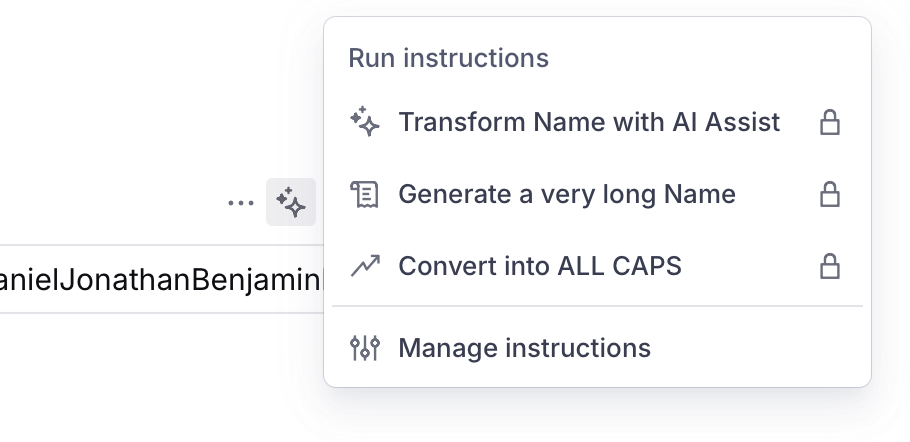
The easiest way to get started with Sanity AI Assist is to try it out on a single document field. After you have enabled AI assistance, you will see the sparkle icon next to the “Field actions” icon in your documents. You can use it to add instructions which will be applied to the field. After the instruction has been saved, it will be available in the “Run instructions” context menu for the field. Let’s start by adding an instruction to generate a new name in our document:
We now have an AI-assisted field! Notice the AI Assist indicator in the document toolbar — once it disappears, the changes have been applied and are ready for review.
We can add multiple instructions to our fields as well. For example, converting the text to ALL CAPS, any other transformations or further text generation for the same field. After a while, we might end up with several sets of instructions. Sanity gives you a way to distinguish between them by adding a custom icon for each one:
Even with a single field, the possibilities are vast and can be tailored to your team’s specific needs. We can also use AI Assist on the whole document. We’ll get to this a bit later, but first, let’s explore some more pragmatic use cases.
Generating alternative titles
We can now run instructions on a field level, but how is this useful in the real world? Maybe you can already see how we can streamline our workflow by generating placeholder content during development, or brainstorming alternative variants for an article title. But we can easily go beyond a single field.
Suppose we have a Title field in our document. In our schema, we can add an array of alternative titles like so:
In the Instructions panel, we can refer to the Title field, read its value, ask Sanity AI Assist to generate alternative titles, and voila — we can review the suggestions after a couple of seconds.
Alt text generation from images
Working with text is fairly straightforward, but let’s try something more complicated — images, and, more specifically, generating image descriptions.
Image alt text is important for making content accessible to visually impaired users and improving SEO, but it’s easy to overlook it when adding images on the web. Luckily, there is an easy way to automate it with Sanity AI Assist.
Let’s assume we have an image field. Inside its definition, we can nest a fields array and add our altText field. Then all we need to do is wire it up via imageDescriptionField in options.aiAssist:
To see it in action, we can drag and drop an image, and its altText will be automatically generated once the image upload is complete. We can see the AI Assist indicator working next to the altText field, and, after it’s done, we can make any further tweaks if necessary.
Image generation from text
This was easy, but what if we don’t have an image? Maybe we are just prototyping something, waiting for our designer or illustrator to provide real images, or just want to play around with image generation? Returning to our bird example, let’s assume we have an image field with a nested text field for the image prompt. We can wire these up via the imageInstructionField property under options.aiAssist, similar to what we did for the text generation in the previous example:
Now we can start by typing in the image prompt and running the “Generate image from prompt” instruction. Again, we’ll see the AI Assistant working on the image, and, after a while, our AI-generated bird will appear — looking almost as good as a real image:
Working with multiple fields
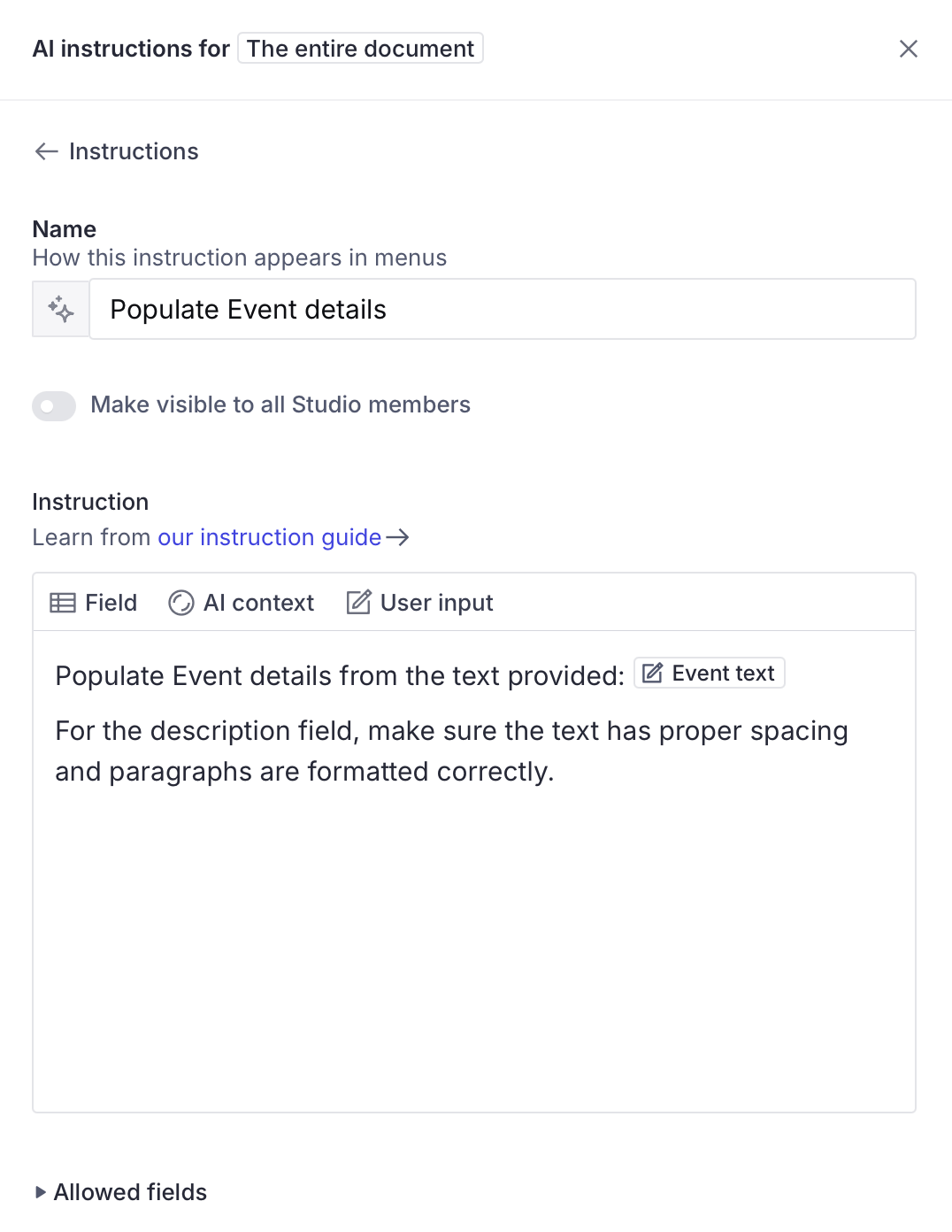
Let’s consider another real-world example: a press release for an event. It is just raw text, but we need structured data in Sanity, which we would like to provide to our web or mobile app. If we press the sparkle ✨ icon in the top-right corner of our document, we can add a document-level instruction. We will see the AI “Instruction” panel displayed, and we can use the “User input” control to read the raw text:
We can run the instruction on the entire document, and we will see Sanity AI Assist interpreting the text and correctly filling in the relevant fields. Notice that even datetime fields are correctly populated. We just turned raw text into structured data!
This can easily go the other way too. Imagine reading all the fields in a document and generating a summary, or, more practically, extracting data to be used for SEO fields like meta description, keywords or Open Graph tags. It’s menial work, which people do not particularly enjoy doing, but AI Assist is great at!
Translation
There are different ways to go about translations when using Sanity, but we will look into document-level translations. To start, we need to set up the “Document Internationalization” plugin. In our Sanity config, under plugins we can add:
In the config we can also enable Sanity AI Assist translation for specific document types, but for now, we’ll leave it enabled for all. We then need to add a language field in the relevant document, in our case event. With the rest of our fields under defineType, we will need one more defineField call:
We can now create a new event document, fill in all the fields and select the correct language. Then, we add a new translation from the “Translations” dropdown. You’ll see the content copied in the original language, but when you select “Translate document” from the AI Assist dropdown, you can see the indicator working its way through all the fields. In a short while, you should have your automatically translated document!
As with all large language model (LLM) tools, we should review the output and make any amends, but this is a great starting point with very little effort.
Sanity AI Assist is a real asset (and its value is only increasing)
We’ve explored some practical ways to use Sanity AI Assist, from embedding complex content and structuring data to working with images and translating entire documents. There’s already a lot we can do today, and the Sanity team is actively developing it further, releasing regular updates with new features and improvements. Sanity AI Assist proves that when AI is done right, it’s not just an add-on — it’s a real asset.
As Nearform has a strategic partnership with Sanity, our team has a wealth of experience in helping enterprises get enduring impact from its modern content and data solutions. We can help you leverage the latest AI Assist features, customise Sanity Studio instances to align with your brand and functionality needs and build scalable, efficient workflows that empower your content teams. Contact us to get started.
But wait - there's more.
Nearform publishes real-world learnings on data & AI, engineering, and digital strategy - with more merged in weekly.
Insights
Perspectives on AI in engineering, product development, and strategy, for enterprise executives.